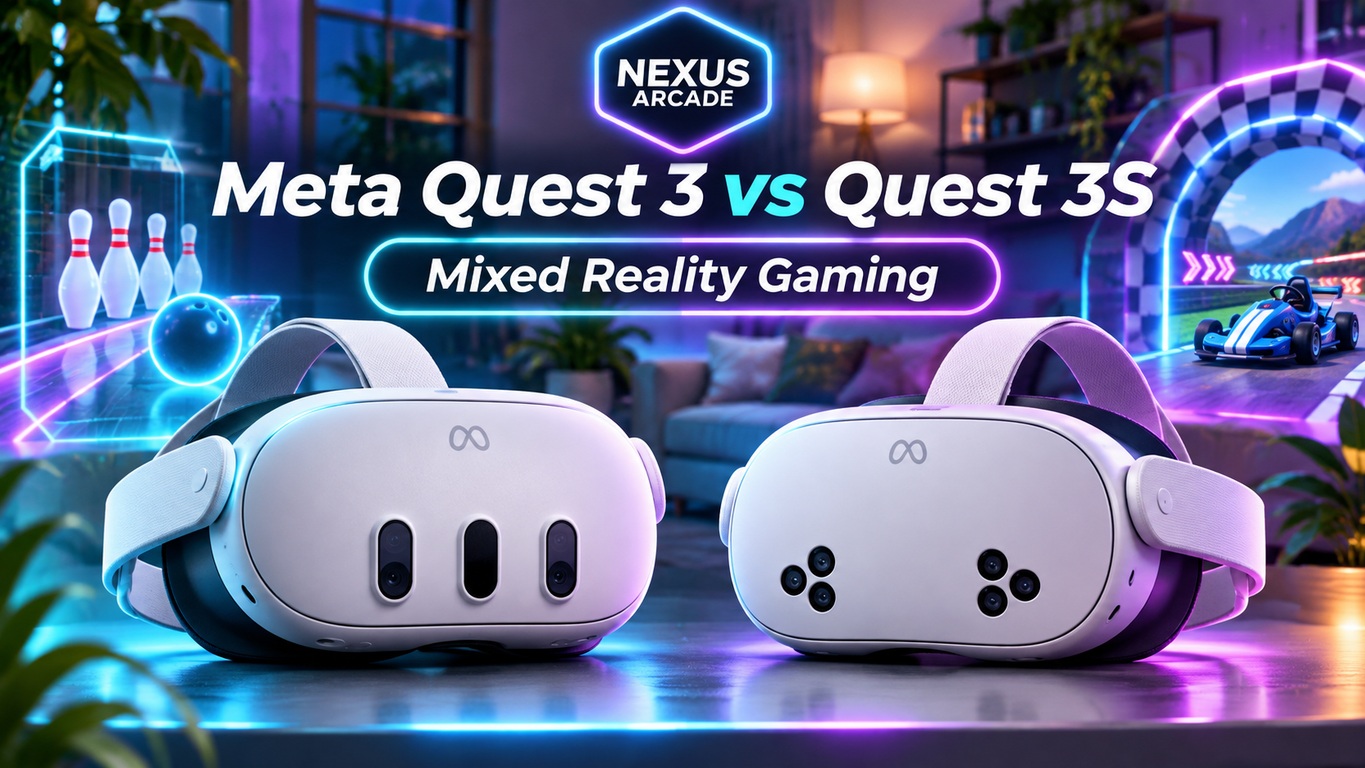

When you put on a Meta Quest 3 or Quest 3S, your sofa, walls and floor can become part of a mixed-reality game. But if a headset understands your surroundings, what information does it collect about your room and who can access it?
The answer is more nuanced than either “the headset records everything” or “nothing leaves the device”. Passthrough video, spatial data and an individual app's permissions are different things. Understanding those differences helps you make informed choices before playing.
1. What Does a Mixed Reality Headset Know About Your Room?

Quest devices use cameras and tracking systems to work out where you are and how to display digital objects in a physical space. Depending on the features in use, spatial information can describe surfaces, the shape of furniture, the room layout and reference points for positioning content.
For example, a virtual bowling lane needs to appear at a sensible height rather than floating through your sofa. A shared-room experience may need an anchor so two players see the same objects in corresponding positions.
Spatial data is not necessarily a photograph of your home. It can be a simplified description of surfaces and their positions. See our guide to how mixed reality works for the technology behind these effects.
2. Does Passthrough Let Games See Your Camera Footage?
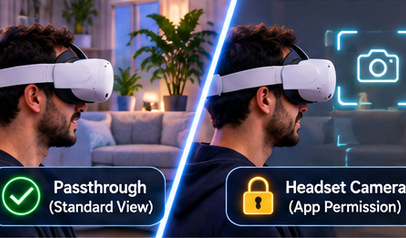
Ordinary passthrough does not automatically give an app raw camera images. Meta says its standard passthrough system displays the real-world view behind virtual content without passing raw camera frames to the application.
However, Quest 3 and 3S also support a Passthrough Camera API. Apps using that capability can request permission to access live camera imagery for functions such as object recognition or computer vision. You should therefore check the actual permissions rather than assuming every mixed-reality app has the same access.
The Meta Horizon Store's App Privacy section identifies when an app requests headset camera data. Read Meta's passthrough explanation for the distinction.
3. Can Spatial Data Be Shared with Meta or Other Apps?
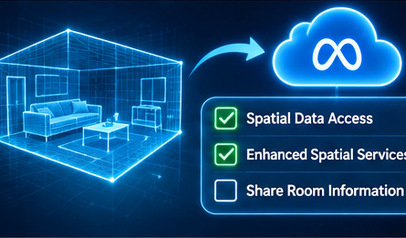
Meta allows users to control whether individual apps can access spatial data. An app that needs information about surfaces or room layout may ask for this permission; declining it can limit certain mixed-reality features.
There is also a separate setting called Enhanced spatial services. According to Meta, it can share spatial information with Meta servers to support features such as remembering a play area or aligning local multiplayer experiences.
That does not mean every game uploads a video recording of your room. It does mean that some spatial information may be processed or shared beyond the headset when the relevant services are enabled. For the exact categories and options, consult Meta's spatial-data controls guide.
4. How to Review and Change Your Quest Privacy Settings
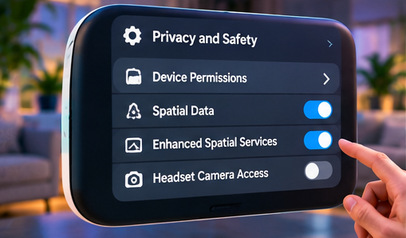
You do not need to understand every sensor to make a useful privacy check. Start with the apps you actually use and ask what access each one needs.
- Check the store listing: Open an app's Meta Horizon Store page and review its App Privacy section, including spatial data, headset camera and microphone access.
- Review app permissions: In Quest Settings, open App library or the relevant app-permissions area and review spatial-data access.
- Review enhanced spatial services: Go to Settings > Privacy and safety > Device permissions to find the Enhanced spatial services control.
- Consider deletion controls: Meta documents options to delete shared spatial data and clear physical-space history, including stored boundaries and certain anchors.
Menus can change with headset updates. Disabling a permission may affect placement or same-room features, so review the consequences before changing it.
5. What Should You Check Before Installing a Mixed Reality Game?

Camera and room permissions are only part of privacy. A multiplayer game might also process account identifiers, scores, session details or technical diagnostics. Those are separate from the spatial map of your room.
Read the developer's privacy policy and ask what data is needed, why it is used, who receives it and how to request deletion. The Nexus Arcade privacy policy, for example, describes categories including Meta profile details, multiplayer session information, leaderboard records and technical diagnostics; it does not establish that every possible Quest sensor permission is used.
Privacy-aware XR development means making these distinctions understandable. Nexus Dev Studio, the development team behind Nexus Arcade, works on VR and mixed-reality experiences where real-world interaction and platform permissions are relevant design considerations.
6. A Practical Privacy Checklist for Quest Players
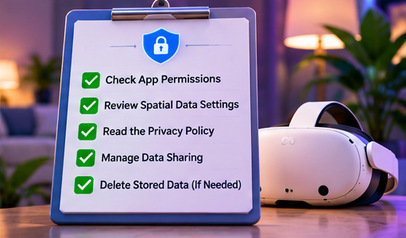
Before trying a new game, check whether its requested access matches what the game does. Review headset-camera and spatial-data permissions separately, revisit sharing controls after major updates and take a look at the developer's privacy policy.
Keep the wider picture in mind too: privacy also concerns your accounts and other online services. For general guidance on asking the right questions about an app's data use, OptOut AI's UK guide to privacy by design is a separate resource. OptOut AI is not a tool for changing Quest spatial-data settings.
You can enjoy mixed reality while still making deliberate choices about what you share. A headset's ability to recognise your room is useful technology; understanding the permissions around it helps you use that technology with more confidence.
Want to see mixed reality in action? Explore Tenpin bowling and Turbo Tracks racing in Nexus Arcade, then download Nexus Arcade free on the Meta Horizon Store for Quest 3 and Quest 3S. Review the current app privacy information before installing.